
Execution & monitoring
Review and edit AI-generated DM templates
Review initial DM and CTA messages, adjust the wording, save your edits, and regenerate templates when your CTA changes.
- Updated
- Published
On this page
Open the message task
Stop execution if the task is running. Open Tasks & execution on the dashboard and select the initial DM or CTA delivery task. Review its CTA and message template section.
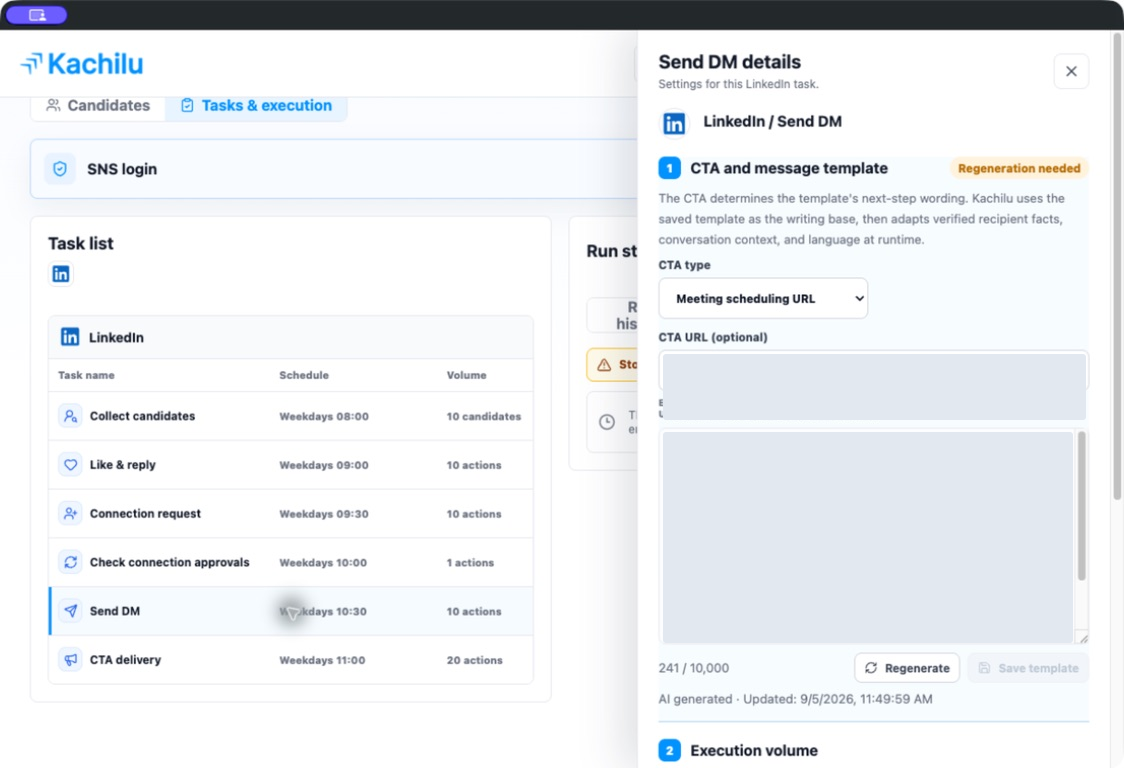
The template is a starting point for each message
Kachilu uses the saved template as a writing base, then adapts it using verified recipient information, the conversation, and language. The template is not sent word for word to every recipient.
Make the reason for your initial DM clear and explain the next step in your CTA message. Check service names, performance figures, and descriptions of the destination page.
Edit the wording and save
Edit the text directly and select Save template. Check that the Unsaved notice disappears and the update time changes.
For example, a specific question such as 'Does finding prospects take up much of your team's time?' is easier to review than a generic introduction. Adapt any example to your service and the intended recipient.
Regenerate after changing the CTA or service information
If Regeneration needed appears, check that your CTA and template match. After changing the CTA, use Save CTA and regenerate, review the result, and save any edits.
Keep a copy of hand-edited wording before regenerating if you want to reuse it.
Review the actual message after resuming
Save your settings and resume execution. Use the run history to check the message that was used and whether it preserved the intent of your template.
Related articles
Still need help?
Tell us the app version, when the problem occurred, the task type, and the message shown in the app. Do not send passwords or verification codes.
Contact support