
Execution & monitoring
Track outreach progress and results in Candidates
Filter prospects, understand waiting stages, read the summary counts, and open individual action history.
- Updated
- Published
On this page
Open Candidates on the dashboard
Candidates lists collected prospects and their progress. Filter by name, social channel, stage, or status. Clear filters and select Refresh candidates if a prospect is missing.
Candidates have not been collected yet means the list is empty. Check the collection task's schedule and run history.
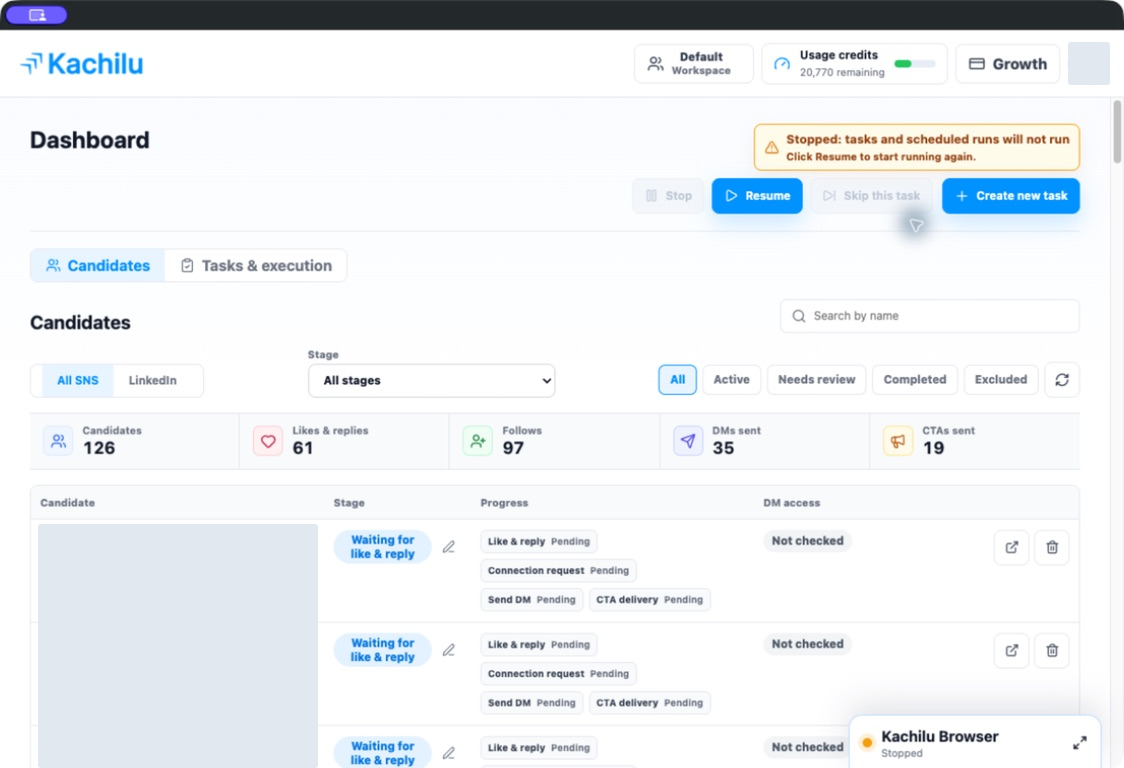
Use the stage to see what happens next
The same candidate moves through engagement, connection requests, DMs, and later steps. A stage can indicate a pending action or a response Kachilu is waiting for.
- Waiting for connection approval: the connection request is awaiting acceptance.
- Waiting for DM: the candidate is waiting for the DM step.
- Waiting for next reply check: another reply check is pending.
- Waiting to send CTA: the CTA delivery step is pending.
- Needs review: a person needs to check the situation.
- Excluded: the candidate has been removed from further targeting.
Compare counts using the same filters
The summary shows Candidates, Likes & replies, Follows, DMs sent, and CTAs sent. Check the active candidate filters when reading these counts.
CTAs sent counts delivery of an invitation. It does not count link clicks, bookings, meetings, or contracts. Check destination analytics or sales records for those outcomes.
Open the history for an individual action
Open a candidate's action history to review what happened. Check the recipient and message before deciding what to do next.
Retry and stage changes affect future execution. Use Refresh candidates when you only want to reload the display.
Related articles
Still need help?
Tell us the app version, when the problem occurred, the task type, and the message shown in the app. Do not send passwords or verification codes.
Contact support